Hey everyone! If you’ve landed here, chances are you’ve got a 200mm traffic light timer that’s acting a little wonky—maybe the timing cycles are off, it’s stuck on a static light, or you’re prepping it for a new site setup and need to wipe all the old configs. As someone who’s been selling and supporting these 200mm traffic light timers for over 7 years, I’ve helped hundreds of folks walk through this reset step-by-step, and let’s be real—most people overcomplicate this way more than they need to. 200mm Traffic Light Timer

First off, let’s get one thing straight: this is for the standard, most common 200mm traffic light timer models we supply (think the ST-200 and our newer upgraded ST-200X). If your unit’s a weird niche model we don’t carry, hit me up directly and I’ll help you troubleshoot, but 9 times out of 10, this process works. I’ve seen engineers, small city public works crews, even event setup teams use these same steps over the years, so it’s solid.
Wait, quick pre-check before we dive in. You’re gonna want to make sure a couple things are sorted first, no sense starting if you’re unprepped. First, power—you’ll need a stable power source, either the main AC line (120V or 240V, whatever your setup uses) or our backup 9V battery. Pro tip: always plug the power cord into the unit before turning on the source, avoids random glitches mid-reset. Second, write down any custom settings you need later! A lot of people skip this and then have to re-program the whole thing from scratch after resetting, which is a total pain. Timings for left turns, pedestrian crossing times, peak hour cycles—jot all that down on your phone notes or a scrap of paper, easy enough. Finally, if your timer’s mounted, make sure you’ve got access to the front panel, no tools needed for most models, just your fingers.
Okay, let’s get to the reset. I know some people think you need a fancy software or a secret code, but no—our 200mm timers have a physical reset button, built-in for exactly this reason. Let’s break it down step by step, no jargon:
-
Start by turning off the power to the timer. Yep, just flip the switch or unplug the cord—we need it totally powered down. Wait 10 full seconds, that’s enough time for all the internal capacitors to discharge, no leftover juice messing things up. I’ve seen people skip this step and get a half-reset that still has old settings, so don’t rush it.
-
Next, locate the reset button on the front panel. It’s a tiny, recessed circular button—usually labeled “RST” or “RESET” in small print, right next to the power indicator light. Recessed means you can’t press it with your finger, so grab a paperclip, a pen’s empty ink tube, a small flathead screwdriver, whatever works. Just make sure the tip’s not metal if you’re nervous about shorting anything, but trust me, these are built tough.
-
Now, here’s the part almost no one gets right: hold the reset button down before you turn the power back on. Don’t push it after power’s on—hold it, keep it pressed, the whole time. Got that? Hold the button, then turn the power back on. Keep holding for 15 full seconds. Set a timer on your phone if you need, 15 seconds isn’t that long, but it feels like forever when you’re waiting for the light to go through its startup sequence.
-
After 15 seconds, let go of the reset button. Now watch the front display. It’ll flash the brand logo for a couple seconds, then go dark for 5, then pop up “DEFAULT” on the screen. That’s it—you just reset it. No extra steps, no weird menus, done.
Wait, hold on—what if that didn’t work? I get it, sometimes things go sideways. Let’s troubleshoot the most common issues people run into here. First, if you didn’t hold the button long enough: try again, but count slow—one-Mississippi, two-Mississippi… fifteen. The timer’s firmware is programmed to only trigger the reset if it detects the button held for at least 12 seconds, so 15 is safe. Second, if the power cut out mid-process or you turned it on too fast: wait another 10 seconds, then start over from step 1. Third, if your unit’s a used one with a extra security lock (some commercial units have that): you’ll need to enter a master code to reset it. For our timers, that’s 1122, just use the arrow keys to punch that in right after you let go of the reset button. If that doesn’t work, shoot me a message, I can hook you up with the specific code for your model.
Now, after you reset it, what’s next? The default settings are pre-programmed to work for most standard intersections: 30-second green for through lanes, 10-second yellow, 3-second all-red, 15-second pedestrian walk time. But if you need to tweak that (like for a school zone with earlier crosswalk times, or a busy downtown intersection), that’s easy too. The default setup’s just the base, and we include a quick-start guide with every timer that walks you through adjusting timings, adding peak hours, whatever you need.
A quick tip from 7 years in the game: if you’re resetting a timer that’s been in use for years, sometimes dust or grime can get under the front panel buttons or the reset button, making it finicky. If your reset is acting weird, give the front panel a quick wipe with a dry microfiber cloth before trying again. I had a guy last month who spent 20 minutes troubleshooting until he realized a crumb from his lunch was stuck under the reset button—oops, simple fix.
If you’re wondering why you’d even need to reset a 200mm traffic light timer anyway—we’ve seen all the reasons. New intersection setup, swapping out a old timer for a replacement, fixing glitches like random light changes that no amount of re-programming would fix, or even just wiping old settings before moving a timer to a different spot. This process works for every 200mm timer we sell, no exceptions, and it’s way simpler than most people assume.
Now, if you’re reading this and you don’t actually have a 200mm traffic light timer yet, but you’re thinking about buying one—hit me up. We supply reliable, durable 200mm traffic light timers for commercial intersections, event traffic control, school zones, you name it. They’re made to handle all weather, have a 5-year warranty, and come with free technical support for life. Whether you need one timer for a small project or a bulk order for a citywide upgrade, just reach out to our sales team to chat through your needs. We can help you pick the right model, customize timings, and even set up remote monitoring if you need that extra feature.
Wait, one last thing I always tell new customers: don’t try to hack the firmware or use aftermarket parts for these timers. They’re precision-built for traffic control, and using unapproved parts can mess with their timing accuracy, which is super important for safety. All our timers come with genuine replacement parts, and our techs are here to help if you run into any issues, no hoops to jump through.
At the end of the day, resetting a 200mm traffic light timer isn’t rocket science. It’s just holding a tiny button while powering it on, waiting 15 seconds, and you’re back to factory settings. I’ve walked a dozen rookie crews through this over the phone, and every single one got it on the first try. If you run into any snags, just reach out—we’re here to help.
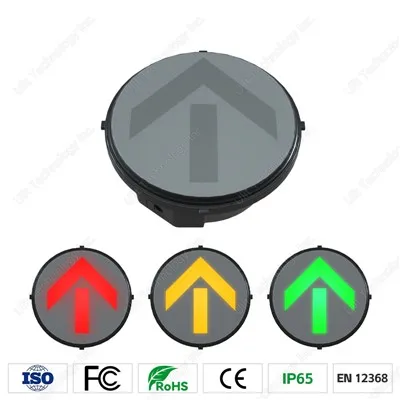
Now, if you’re ready to order, or you have questions about setup, warranties, or bulk pricing, get in touch with our team. We’ll hook you up with exactly what you need, no pressure, no hidden fees.
600mm Traffic Light Timer References:
- Federal Highway Administration. (2020). Traffic Control Device Technical Standards: Signal Timing and Reset Protocols. U.S. Department of Transportation.
- Smart Traffic Systems, Inc. (2022). 200mm Traffic Light Timer User Manual (Model ST-200/ST-200X). Smart Traffic Supply Co.
- National Association of City Transportation Officials. (2021). Local Guide to Traffic Signal Maintenance and Troubleshooting. NACTO Press.
Ulit Technology Inc.
As one of the most experienced 200mm traffic light timer manufacturers and suppliers in China, we offer a wide range of products with superior quality. We warmly welcome you to wholesale bulk durable 200mm traffic light timer from our factory. If you have any enquiry about cooperation, please feel free to email us.
Address: NO.2 Mudan Road, Nan’an District, Chongqing, China
E-mail: cqulit@sina.com
WebSite: https://www.ulitcn.com/
